
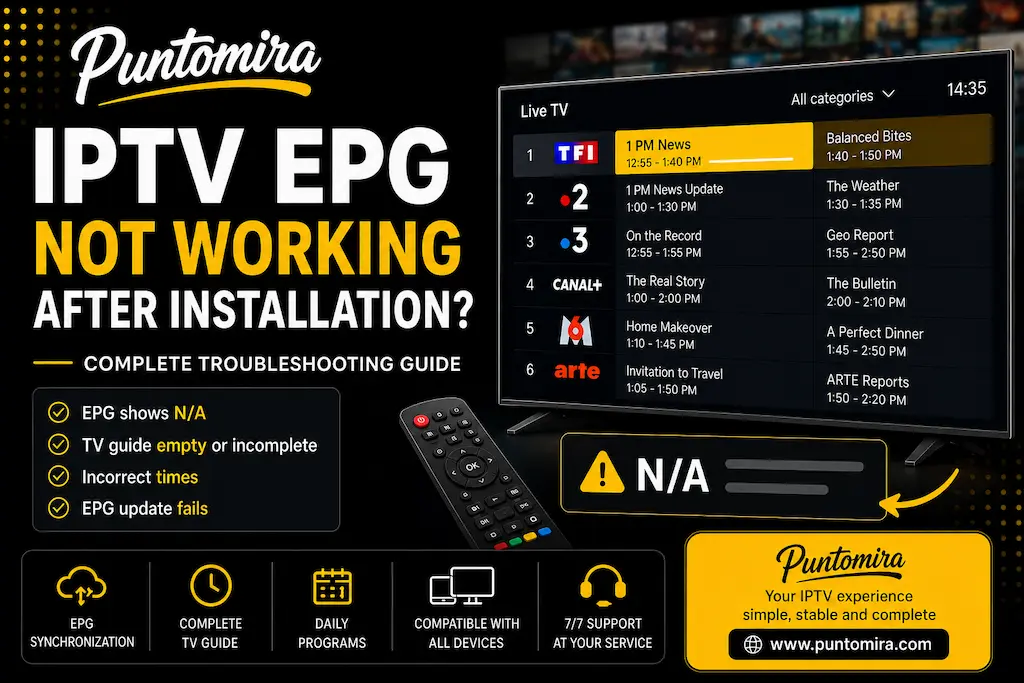
You have just installed your IPTV service on Smarters Player Lite and everything seems to be working correctly… except the EPG. Channels open normally, live streaming works perfectly, but instead of seeing program names, you only see “N/A” everywhere. No TV schedule, no program information, no guide at all. Naturally, many users immediately assume that something is wrong with their IPTV service.
The good news is that in the vast majority of cases, this issue is not related to your IPTV subscription. When users contact us because “the EPG is not working,” the problem is usually caused by a synchronization that has not yet been completed or was interrupted during the initial setup.
In this complete troubleshooting guide, we will explain why the EPG displays “N/A,” how to verify that everything is configured correctly, and most importantly, how to restore your TV guide in just a few minutes. Simply follow the steps in order and your program guide should be working normally again.

Why Is the EPG Not Working After Installation?
Before looking for a solution, it helps to understand why this issue occurs. Many users believe that the EPG is built directly into the channels themselves, while in reality it is a separate service that must be downloaded and synchronized with the application.
Understanding the Role of the EPG
EPG stands for Electronic Program Guide. It is the feature that displays the current program, upcoming shows, broadcast schedules, and sometimes additional information about the content being aired.
Without an EPG, your channels will usually continue to work normally, but you lose all visibility into what is currently being broadcast. You are essentially browsing channels without knowing what is on.
Why the TV Guide Matters
The TV guide greatly improves the viewing experience. It allows you to instantly see what is playing on each channel, find out when a movie starts, check sports schedules, and make full use of features such as Catch Up and replay services when available.
That is why users usually notice immediately when it stops working. Fortunately, the absence of EPG information rarely indicates a problem with the IPTV service itself.
Why Does the Application Display “N/A”?
When Smarters Player Lite displays “N/A,” it simply means that the TV guide information is not currently available inside the application.
In other words, the application has not successfully downloaded or installed the EPG data. The channels themselves may continue to work perfectly while the guide remains empty.
Most Common Causes After a New Installation
When we receive support requests regarding a missing EPG, the same causes appear again and again. Understanding them before starting the troubleshooting process can save a lot of time.
The Initial Synchronization Was Never Performed
After adding a new IPTV account, Smarters Player Lite must download a large database containing TV schedule information. If this process was never started manually, the guide remains empty and only displays “N/A.”
This is by far the most common reason we encounter immediately after installation.
The EPG Download Was Interrupted
It is also common for users to start the EPG update and then close the application before the process has completed. In that situation, only part of the data may be downloaded or installed.
The result is often the same: a few channels may display guide information while the majority remain stuck showing “N/A.”
An Unstable Internet Connection
The EPG contains tens or even hundreds of thousands of program entries. Although the file size is manageable, a network interruption during the download process can prevent the data from being retrieved completely.
A weak or unstable Wi-Fi connection is often enough to cause this type of issue.
The EPG Server Is Temporarily Unavailable
EPG data is delivered through dedicated servers. Like any online service, these servers may occasionally become overloaded, unavailable, or temporarily offline.
When this happens, the update may fail even if your internet connection is working perfectly. Simply trying again a few hours later usually resolves the issue.
Before You Start Troubleshooting
Before performing a complete EPG update, we recommend carrying out a few simple checks. These preliminary steps help eliminate the most common causes and can save you a considerable amount of time.
Check Your Internet Connection
Make sure your device has a stable internet connection. Open a few IPTV channels or launch another online application to confirm that your network is functioning correctly.
If your Wi-Fi signal is weak, move closer to your router or switch to a more stable connection before starting the EPG synchronization process.
Why This Verification Matters
Many users assume that the EPG is embedded directly into the channels themselves, but in reality it must be downloaded separately. A weak or unstable internet connection can interrupt the retrieval process even when live TV channels continue to play without any issues.
Once these checks have been completed, we can move on to the solution that resolves most EPG-related problems. If your TV guide still displays “N/A,” it is time to force a complete synchronization directly from Smarters Player Lite.
This is the exact procedure we recommend to users who have just installed their IPTV service and notice that program information is still missing. In most situations, it restores the TV guide within only a few minutes.
Main Solution: Update the EPG on Smarters Player Lite
Follow the steps below in the exact order presented. While some of them may seem obvious, it is important to allow the entire process to finish completely so that all guide data can be installed correctly.
Step 1 – Start the EPG Synchronization
The first step is to manually initiate the EPG data retrieval process. This operation can be performed directly from the Smarters Player Lite home screen.
Locate the “Update EPG” Button
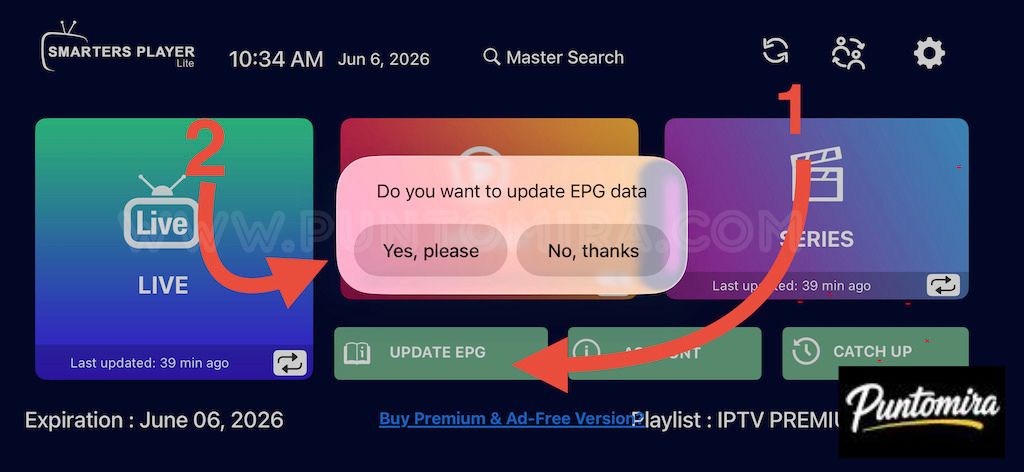
From the main screen, locate the row of buttons displayed beneath the primary content categories. You should see options such as Update EPG, Account, and Catch Up.
The button we are interested in is Update EPG. It is usually accompanied by a small icon resembling an open book or TV guide.
Select this button to open the EPG update confirmation window.

Confirm the Update Request
After selecting Update EPG, a confirmation window should appear in the center of the screen displaying the following message:
Do you want to update EPG data?
You will then see two available options:
- Yes, please
- No, thanks
To begin the synchronization process, select Yes, please. The application will immediately start downloading EPG information from the server.
If No Window Appears
In some cases, it may appear that nothing happens when you click the button. If this occurs, completely close Smarters Player Lite and launch the application again.
Once you return to the home screen, try the process again. Most of the time, the issue disappears immediately after restarting the application.
If the button still does not respond after several attempts, verify that your internet connection is active before continuing.
Step 2 – Download the TV Guide Data
Once the request has been confirmed, the application automatically starts downloading the EPG information. This step is essential because it retrieves all program guide data associated with your IPTV channel lineup.
The “Downloading EPG Data” Message
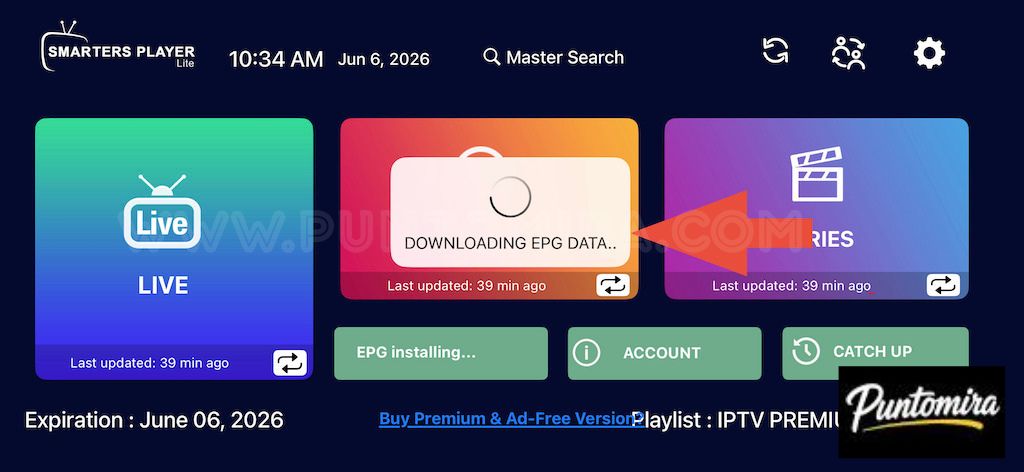
A few seconds after confirming the update, you should see the following message appear on screen:
DOWNLOADING EPG DATA…
This message is usually accompanied by a loading animation or spinning wheel. It indicates that the application has successfully connected to the server and has begun downloading the TV guide information.
At the bottom of the screen, you may also see a status message such as:
EPG Installing…
When these messages are displayed, it means the process is functioning normally.

Do Not Interrupt the Download
This is probably the most common mistake we see after a new installation. Some users start the update process and then close the application after a few seconds, assuming the operation has already finished.
In reality, the download may take several minutes depending on the size of your IPTV package and the speed of your internet connection.
During this phase, avoid doing any of the following:
- Closing Smarters Player Lite
- Restarting your device
- Disconnecting from the internet
- Force-closing the application
Any interruption can prevent the EPG from installing correctly and may cause the well-known “N/A” messages to continue appearing on most channels.
Step 3 – Wait for the Installation to Finish
Once the download has completed, Smarters Player Lite automatically moves on to the installation phase. This is when all the retrieved information is integrated into the application’s local database.
This step may sometimes take longer than the download itself, especially on older devices or when the IPTV package contains thousands of channels and a large amount of EPG information.
Understanding the “Adding EPG” Counter
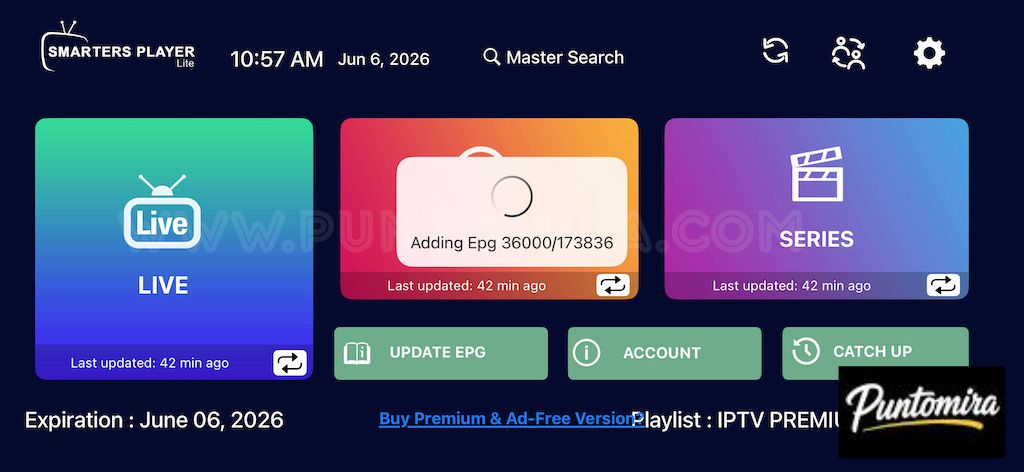
During the installation process, you will normally see a counter similar to the following:
Adding EPG 36000 / 173836
The first number represents the amount of data already installed, while the second number indicates the total number of program entries that need to be integrated into the application.
As long as the first number continues to increase gradually, everything is functioning correctly. Even if the process appears slow, it is important to wait until it has completely finished.

How Long Should You Wait?
On most modern devices, the complete installation process usually takes between one and three minutes. On older Android devices or particularly large IPTV packages, it may take five minutes or even longer.
The rule is simple: as long as the counter continues moving forward, allow the application to keep working. Interrupting the process will only force you to start over from the beginning.
Verify That the EPG Issue Has Been Resolved
Once the installation is complete, it is important to confirm that the TV guide data has been successfully integrated. In most cases, program information appears immediately after synchronization finishes.
Sometimes a few additional seconds may be required for all channel categories to refresh properly. For this reason, wait briefly before assuming that the process has failed.
Open the Live TV Section
From the Smarters Player Lite home screen, select the Live TV category and open several channels to verify that the program information is now visible.
When the EPG is functioning correctly, you should see:
- The name of the current program
- The start and end time
- The next scheduled program
- The LIVE indicator on the current broadcast
If this information appears correctly, it means the synchronization completed successfully and the issue has been resolved.
Test Multiple Channels
We always recommend checking several categories of channels instead of testing only one. Some channels provide complete EPG information, while others may have limited or no guide data available.
For example, you can test a selection of national channels, sports channels, and international channels to obtain a more complete overview of the results.
This quick verification helps avoid confusing a general EPG issue with a simple lack of program information on specific channels.
Problem: Some Channels Still Display “N/A”
After a successful update, some channels may still display “N/A.” This situation is often completely normal and does not necessarily indicate a problem.
Not all channels provide the same amount of EPG information. Some local, regional, or highly specialized channels may not supply program guide data at all.
When Should You Actually Be Concerned?
If only a few channels are affected while the rest display programming information correctly, your EPG is most likely functioning as intended.
However, if the majority of channels continue displaying “N/A” after a complete synchronization, further troubleshooting will be necessary.
Run Another Complete Synchronization
The simplest solution is to perform another EPG update using the Update EPG button. In some cases, an incomplete first synchronization may leave portions of the guide data missing.
A second synchronization is often enough to recover the missing information and complete the TV guide database.
Once again, make sure the process is allowed to finish completely before checking the results.
Resolve the Most Common EPG Problems
If the TV guide still does not work after several synchronization attempts, the cases below represent the most common issues encountered after installation.
The EPG Download Does Not Start
You click Update EPG, but no download begins and no message appears on the screen.
In this situation, start by checking your internet connection. Open several channels and verify that they are working correctly. If live TV works but the EPG refuses to synchronize, the issue may be temporarily related to the EPG server.
Wait a while and try again later. EPG service interruptions are usually temporary and are often resolved automatically.
Restart the Application
A simple restart of Smarters Player Lite may be enough to solve the issue. Completely close the application and launch it again before attempting another synchronization.
This action resets certain temporary connections used during the EPG download process.
Programs Display Incorrect Times
In some situations, program information appears correctly but the displayed times do not match reality. Programs may appear to start one or several hours too early or too late.
This behavior usually indicates a time zone configuration issue rather than an EPG problem.
Check the Time Zone Settings
Open the Smarters Player Lite settings menu using the gear icon located at the top of the screen.
Verify the time zone configured within the application. It should match your country or region so that program schedules are displayed accurately.
For users in the United Kingdom, the correct setting is usually GMT+0 during winter and GMT+1 during British Summer Time. Users in other countries should select the appropriate local time zone.
Update the EPG Again After Changing the Time Zone
After correcting the time zone setting, perform another complete EPG synchronization. This allows the application to recalculate all program schedules correctly.
In most cases, the displayed times immediately become accurate again after the update.
The Application Crashes During Installation
Some users report that Smarters Player Lite closes or restarts while installing EPG data. This issue is generally observed on devices with limited resources.
When several applications remain open in the background, available memory may become insufficient to process tens of thousands of EPG entries properly.
Free Up Memory Before Synchronization
Close all unnecessary applications running on your device and fully restart it before attempting the synchronization process again.
This operation frees memory and often improves stability during the installation of the TV guide.
After restarting the device, launch Update EPG again and allow the process to complete without interruption.
Tips to Prevent Future EPG Problems
Once your TV guide is working correctly, a few simple habits can help prevent the issue from returning. In most cases, the EPG updates automatically, but periodic checks are still recommended.
Allow Automatic Updates
Smarters Player Lite normally performs automatic TV guide synchronizations. That is why you may see messages such as:
Last Updated: 42 min ago
This information confirms that the application continues updating guide data in the background.
As long as this timestamp remains recent, there is usually no need to perform a manual update.
Avoid Repeated Updates
When users encounter an EPG issue, some repeatedly click the Update EPG button. However, this does not speed up the process and can occasionally complicate the synchronization.
One complete update per day is generally more than enough. If the guide is working correctly, it is best to let the application handle updates automatically.
Maintain a Stable Internet Connection
The quality of your internet connection remains one of the most important factors for proper EPG functionality. While channels may continue streaming on a weaker connection, EPG downloads are far more sensitive to interruptions.
If you are using Wi-Fi, ensure that the signal remains stable and avoid disconnecting during synchronization processes.
When Should You Contact Support?
After following all the steps in this guide, the vast majority of EPG-related issues should be resolved. However, some situations may require additional investigation.
We recommend contacting support only after you have:
- Verified your internet connection
- Confirmed that your subscription is active
- Performed at least one complete EPG synchronization
- Allowed the installation to finish completely
- Restarted the application and tested several channels
If the TV guide remains empty or continues displaying “N/A” on most channels after all these checks, our support team will be able to investigate the issue further.
Information to Provide to Support
To speed up the diagnostic process, attach a screenshot that clearly shows the issue. It is also helpful to include a screenshot of the Smarters Player Lite home screen and the section where the affected channels appear.
The more information you provide, the faster and more effectively the issue can be diagnosed.
Need a Reliable IPTV Subscription with EPG Included?
If you have recently installed your IPTV service or are looking for a more reliable solution with a fully functional TV guide, PuntoMira offers subscriptions compatible with Smarters Player Lite, TiviMate, IBO Player, XCIPTV, Smart TVs, Android TV, Fire Stick, smartphones, tablets, and computers.
All subscriptions include access to live TV channels, movies, series, VOD content, and a built-in EPG that allows you to view current and upcoming programs directly from your IPTV application. Plans are available with 1 to 5 simultaneous screens to suit different viewing needs.
Why Choose PuntoMira?
- Fast activation after order confirmation
- EPG included with TV guide support
- Compatible with Smart TVs, Android TV, Fire Stick, iPhone, iPad, and PC
- SD, HD, Full HD, 4K, and 8K channels where available
- Technical support available 7 days a week
- Plans from 1 to 5 simultaneous screens
To discover all available plans and choose the option that best suits your needs, visit the PuntoMira offers page.
Conclusion
If your EPG is not working after installing your IPTV service, there is usually no reason to worry. In most cases, the issue is simply caused by an incomplete synchronization or an update that has not yet been performed.
The most effective solution remains the same: launch Update EPG, confirm with Yes, please, wait for the download to finish, and allow the installation process to complete fully. In most situations, only a few minutes are needed to restore the complete TV guide.
Remember the key troubleshooting steps covered in this guide: verify your internet connection, check your time zone settings, avoid interruptions during installation, and repeat the synchronization if necessary.
In the vast majority of cases, these simple actions are enough to restore a fully functional TV guide. If you encounter another “N/A” message in the future, you will know exactly which steps to follow to solve the issue quickly.
Want to test before buying? try a 24-hour free trial.
Community
Comments and replies
Read real feedback, answer with context and leave a clearer opinion for the next visitor.