

Installing Hot Player IPTV is today one of the simplest solutions for enjoying live TV channels, movies, series, and on-demand content from a single modern player. Thanks to its smooth interface and compatibility with IPTV subscriptions using Xtream Codes or M3U formats, the application appeals to both new users and those looking to replace an older IPTV player.
Unlike some applications that require complex configuration, Hot Player focuses on quick setup and intuitive navigation. In just a few minutes, it is possible to add your subscription, synchronize channels, display the TV guide (EPG), and access movies, series, or replay depending on the options offered by your IPTV provider.
In this complete guide, you will discover how to install and configure Hot Player IPTV step by step on compatible devices. We will also see how to connect a subscription via Xtream Codes or an M3U playlist, optimize the application’s performance, properly configure the EPG, and resolve the most frequent issues such as buffering, channels that do not load, or connection errors.
Whether you are using an Android TV, a Fire TV Stick, a Google TV, an Android smartphone, or an Android box, this tutorial has been designed to guide you from the first launch to an optimal configuration. Even if you are new to the IPTV world, the various steps remain easy to follow thanks to the screenshots and tips provided throughout the article.
Estimated installation time: between 5 and 10 minutes depending on your device and your Internet connection.
What is Hot Player IPTV?
Hot Player IPTV is a media player designed to play content provided by a compatible IPTV subscription. The application does not broadcast channels or videos by itself: it serves as an interface allowing you to connect to an IPTV service using Xtream Codes credentials or an M3U playlist. Once configured, it automatically organizes live channels, movies, series, and, when the provider offers it, the electronic TV guide (EPG) as well as Replay functions.
Its success is mainly based on its simplicity of use, modern navigation, and compatibility with many devices. Hot Player offers a clear interface, fast channel switching, favorites management, and an experience designed for daily use on both large screens and mobile devices.
Application overview
Hot Player IPTV is an application designed to centralize all your IPTV content in a single modern interface. Rather than multiplying players or complex configurations, the application allows you to quickly import your subscription and automatically organize the different available categories: live TV channels, movies, series, replay, and the electronic program guide (EPG), when these services are offered by your provider.
The goal of Hot Player is above all to offer a smooth user experience. From the first launch, the interface highlights the different content categories with intuitive navigation adapted to both televisions and mobile devices. The menus remain simple to understand, loading times are generally fast, and content search becomes much more pleasant than with some older IPTV players.
Another important advantage, Hot Player is compatible with the two most commonly used connection methods today: Xtream Codes API and M3U playlists. This dual compatibility allows users to keep their IPTV provider while enjoying a more modern and more efficient interface.
The application also integrates several functions intended to improve the daily experience: creation of favorites lists, resumption of VOD content playback, automatic sorting of categories, support for subtitles, quick switching between user profiles, and customization of certain display settings.
Why is Hot Player becoming popular?
In recent years, Hot Player has experienced significant growth among IPTV users. This popularity is mainly explained by its modern interface, much more pleasant than that of many historical applications. Where some players display aging menus or options that are difficult to understand, Hot Player focuses on a simple, fast, and visually polished experience.
Compatibility with a large number of devices is also an important argument. Whether you are using an Android TV, a Fire TV Stick, a Google TV, an Android box, or a smartphone, the application maintains a consistent interface and stable performance. Users also appreciate the speed of channel switching, the smoothness of navigation in VOD catalogs, as well as the efficient management of large lists.
Finally, Hot Player evolves regularly thanks to updates published by its developers. These improvements make it possible to fix certain bugs, optimize performance, and gradually add new features to meet the expectations of IPTV users.
Main features of Hot Player IPTV
- Connection via Xtream Codes for quick configuration.
- M3U playlist import compatible with the majority of IPTV providers.
- TV Guide (EPG) allowing you to view current and upcoming programs.
- VOD catalog grouping movies and documentaries according to your subscription.
- Series library organized by seasons and episodes.
- Replay function available when the provider supports it.
- Favorites management to quickly find your preferred channels.
- Multi-screen support and compatibility with many Android devices.
| Feature | Available | Description |
|---|---|---|
| Xtream Codes API | ✅ | Quick connection with URL, username and password. |
| M3U Playlist | ✅ | Manual import of IPTV playlists. |
| EPG | ✅ | Electronic program guide for TV. |
| VOD Movies | ✅ | Access to movies available according to your subscription. |
| Series | ✅ | Organization by seasons and episodes. |
| Replay | Depending on provider | Playback of already broadcast programs. |
| Favorites | ✅ | Creation of personalized lists. |
| Multi-screen | ✅ | Compatible with several types of devices. |
Devices compatible with Hot Player IPTV
One of the main assets of Hot Player IPTV is its compatibility with a wide range of devices. Whether you want to watch your IPTV channels on a television, an Android box, or a smartphone, the application offers a smooth experience and an interface adapted to each screen. This versatility allows you to use the same IPTV subscription on different devices while maintaining simple and intuitive navigation.
Before starting the installation, it is recommended to check that your device is running a recent version of its operating system and has a stable Internet connection. A fast Wi-Fi connection or an Ethernet cable remains the best solution to enjoy HD, Full HD, and 4K content without interruption.
| Device | Compatible | Installation | Compatibility level |
|---|---|---|---|
| Android TV | Yes | Google Play Store | ⭐⭐⭐⭐⭐ |
| Google TV | Yes | Google Play Store | ⭐⭐⭐⭐⭐ |
| Fire TV Stick | Yes | APK / Downloader | ⭐⭐⭐⭐⭐ |
| Android Box | Yes | Play Store or APK | ⭐⭐⭐⭐⭐ |
| Android Smartphone | Yes | Google Play Store | ⭐⭐⭐⭐⭐ |
| Android Tablet | Yes | Google Play Store | ⭐⭐⭐⭐⭐ |
| iPhone / iPad | Yes | App Store | ⭐⭐⭐⭐ |
| Apple TV | Yes | App Store | ⭐⭐⭐⭐ |
Recommended minimum configuration
To obtain the best performance, Hot Player IPTV does not require a particularly powerful configuration. Nevertheless, a recent device will offer smoother navigation, faster channel switching, and better management of 4K content.
- Internet connection of 20 Mb/s minimum for HD channels.
- Connection of 50 Mb/s or more recommended for 4K content.
- At least 2 GB of RAM on Android TV or Android Box.
- Recent Android system to benefit from the latest updates.
- Available storage space to install the application and its cache.
Tip: if your device has an Ethernet port, prefer a wired connection to limit buffering and improve IPTV streaming stability.
What you need before installation
Before installing Hot Player IPTV, prepare the information provided by your IPTV provider. In most cases, you will need Xtream Codes API access (server URL, username, and password) or an M3U playlist. This information will allow the application to automatically retrieve channels, movies, series, as well as the TV guide (EPG) if it is available.
- A stable Internet connection.
- A device compatible with Hot Player IPTV.
- Your Xtream Codes credentials or your M3U URL.
- A few minutes to perform the initial configuration.
Once these elements are gathered, you can move on to the next step: downloading and installing Hot Player IPTV on your device, before configuring your subscription in a few minutes.
How to download and install Hot Player IPTV?
Installing Hot Player IPTV is relatively simple and does not require any particular technical knowledge. The method may vary slightly depending on your device, but the principle remains the same: download the official application, install it, then add the connection information provided by your IPTV provider.
For security reasons, always download Hot Player from an official source or a recognized application store. Avoid modified versions (unofficial APKs), which may contain malware, cause playback errors, or compromise your personal data.
Install Hot Player on Android TV and Google TV
Televisions equipped with Android TV or Google TV allow you to install Hot Player directly from the Google Play Store, which represents the fastest and most secure method.
- Open the Google Play Store.
- Search for Hot Player.
- Select the official application.
- Click on Install.
- Wait until the download is complete.
- Launch the application from your home screen.
During the first launch, Hot Player will display the login screen allowing you to add your IPTV subscription using Xtream Codes credentials or an M3U playlist.
Tip: connect your television to the Internet via an Ethernet cable if possible. A wired connection often improves the stability of IPTV streams, particularly for Full HD and 4K content.
Install Hot Player on Amazon Fire TV Stick
On Fire TV Stick, Hot Player can be installed according to the versions available on your device. If the application is not directly accessible from the Amazon Appstore, it is generally possible to install it via its APK file using an application like Downloader.
- Open the Amazon Appstore or the Downloader application.
- Download the official Hot Player APK.
- Allow the installation of applications from authorized sources if necessary.
- Install Hot Player.
- Open the application.
- Proceed to the configuration of your IPTV subscription.
The Fire TV Stick remains one of the most popular devices for watching IPTV thanks to its excellent value for money and its smoothness. With a good Internet connection, Hot Player works perfectly on most recent models.
Install Hot Player on iPhone or iOS tablet
On an iPhone smartphone, the installation is identical to that of a standard application.
- Open the App Store.
- Search for Hot Player.
- Tap on Install.
- Wait a few seconds.
- Launch the application.
You are now ready to connect your IPTV subscription. In the next step, we will see how to configure Hot Player with Xtream Codes API or an M3U playlist, then how to activate the EPG to display the complete TV program guide.
Configure Hot Player IPTV with Xtream Codes
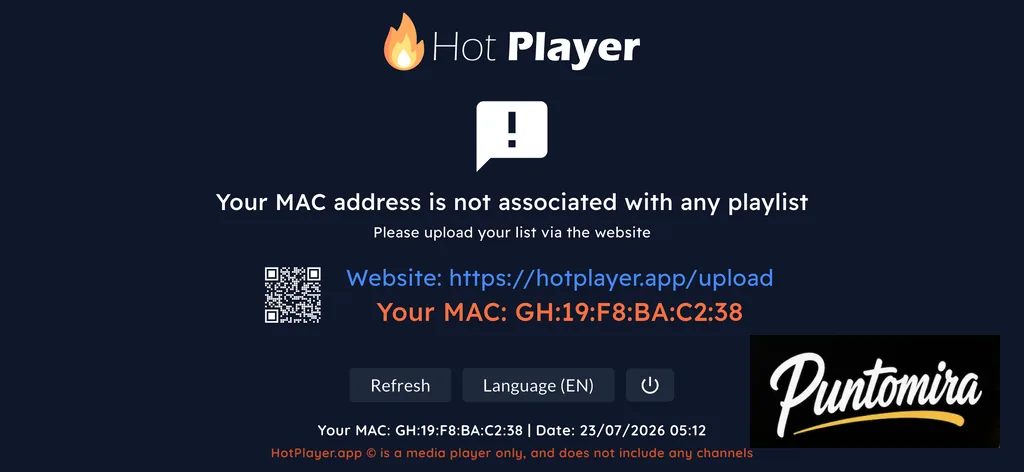
Once Hot Player is installed, the next step is to connect your IPTV subscription. The simplest and most recommended method is the use of Xtream Codes API credentials. This solution allows the application to automatically import TV channels, movies, series, categories, as well as the electronic program guide (EPG) when it is available.
The majority of IPTV providers provide this information after subscription activation. You will generally receive a server URL, a username, and a password. Simply enter this information in Hot Player to access your entire catalog.

Step 1: Choose Xtream Codes API
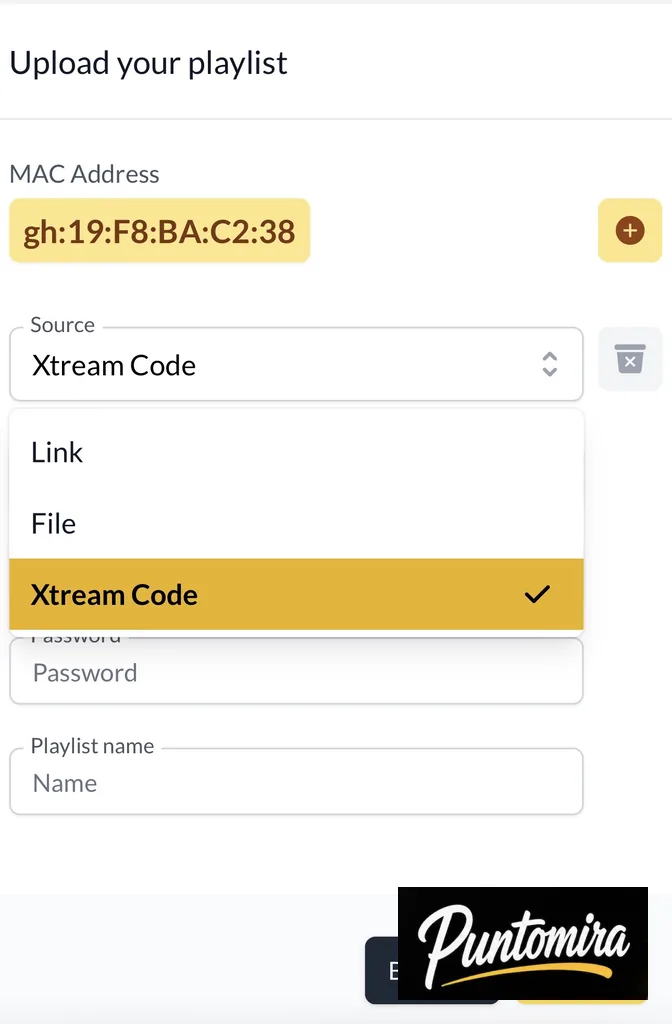
On the first launch, Hot Player displays several connection methods. Select Xtream Codes API, which remains the fastest and most reliable solution for configuring your IPTV subscription.
- Open Hot Player.
- Tap on Add Playlist.
- Select Xtream Codes API.
- Proceed to the configuration screen.
Step 2: Enter your credentials
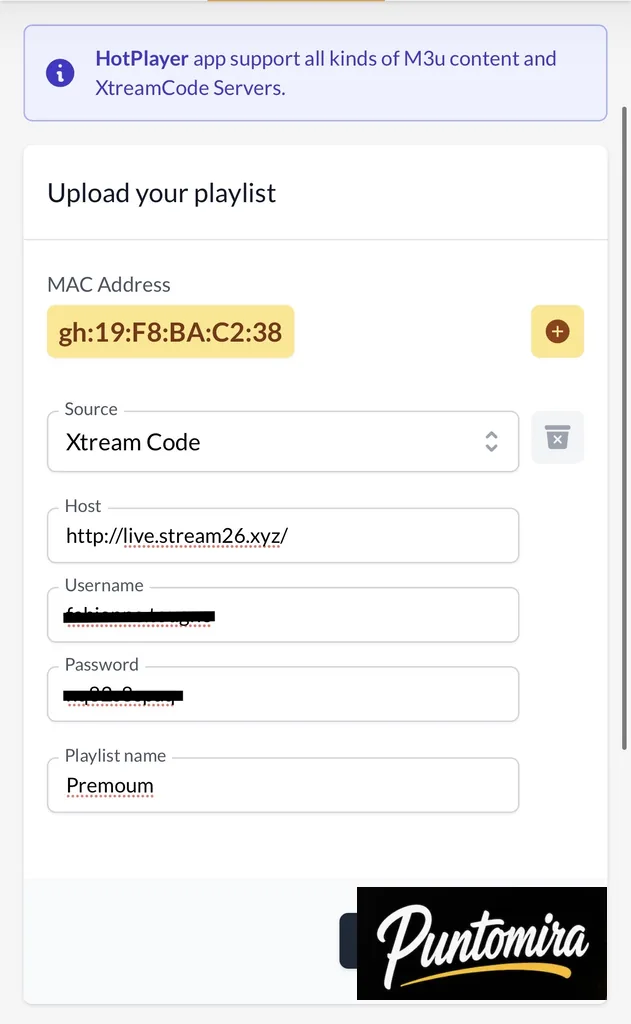
Then fill in the different fields with the information provided by your IPTV provider.
| Field | Description |
|---|---|
| Playlist name | Free name (e.g., My IPTV). |
| Server URL | IPTV server address. |
| Username | Your IPTV username. |
| Password | Your IPTV password. |
After verifying the entered information, click on Login. If the credentials are correct, Hot Player automatically downloads the different categories available in your subscription.

Step 3: Content synchronization
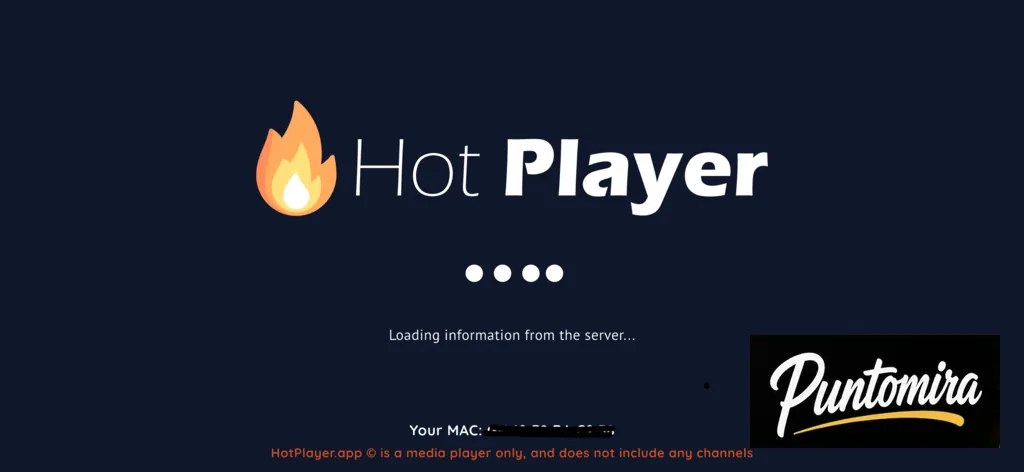
During the first connection, Hot Player proceeds to synchronize your subscription. Depending on the size of your catalog and your Internet connection, this operation can last from a few seconds to several minutes.
- Import of live TV channels.
- Loading of categories.
- Synchronization of VOD movies.
- Import of series.
- Download of the TV guide (EPG) if available.
Tip: do not close the application during the initial synchronization. An interruption may prevent the complete loading of channels or VOD content.
Once the synchronization is complete, you directly access the Hot Player home screen, where all your channels, movies, and series are automatically organized. If your provider supports Replay or EPG, these features will also be available without additional configuration.
In the next section, we will see how to configure Hot Player IPTV with an M3U playlist, a method compatible with most IPTV providers and ideal when Xtream Codes credentials are not available.
Configure Hot Player IPTV with an M3U playlist
If your IPTV provider does not offer a connection via Xtream Codes API, you can use an M3U playlist. This format is compatible with the majority of IPTV services and allows you to quickly import TV channels, movies, series, and, in some cases, the electronic program guide (EPG).
An M3U playlist is generally provided in the form of a URL or a file containing the list of IPTV streams. Hot Player supports both methods, but the use of an M3U URL is strongly recommended, as it allows you to automatically retrieve updates made by your provider.

Step 1: Add a new playlist
From the Hot Player home screen, open the menu to add a new IPTV source.
- Open Hot Player.
- Click on Add Playlist.
- Select M3U Playlist.
- Proceed to the configuration screen.
Step 2: Enter your M3U URL
Hot Player will then ask you for some information to identify your playlist.
| Field | Description |
|---|---|
| Playlist name | Choose a custom name (e.g., Home IPTV). |
| M3U URL | Paste the link provided by your IPTV provider. |
| EPG URL (optional) | Add the TV guide link if provided separately. |
After pasting your M3U URL, check that it is complete before validating. A character error or an incomplete link will prevent Hot Player from retrieving the available content.

Step 3: Automatic content import
Once the playlist is validated, Hot Player automatically downloads the different available categories. Depending on your subscription, you will find live TV channels, on-demand movies, series, as well as Replay and EPG when these features are supported.
- Live TV channels.
- VOD movies.
- Series.
- Categories automatically organized.
- TV Guide (EPG) according to your provider.
- Replay when available.
Good to know: unlike Xtream Codes, some M3U playlists require manual updating if your provider modifies the connection link. Regularly check that your M3U URL remains valid to avoid loading errors.
How to activate and configure the EPG (TV Guide)
The Electronic Program Guide (EPG) allows you to display current broadcasts, upcoming programs, and broadcast schedules directly in Hot Player. This feature considerably improves the user experience, particularly for people who regularly watch live TV channels.
When your IPTV provider includes a compatible EPG, Hot Player automatically downloads it during the first synchronization. If this is not the case, it is often possible to manually add an EPG URL in the application settings.
In the next section, we will see how to customize Hot Player IPTV, create a favorites list, modify the video player settings, and optimize performance to obtain smooth playback on Android TV, Fire TV Stick, and Google TV.
Customize Hot Player IPTV for a better experience
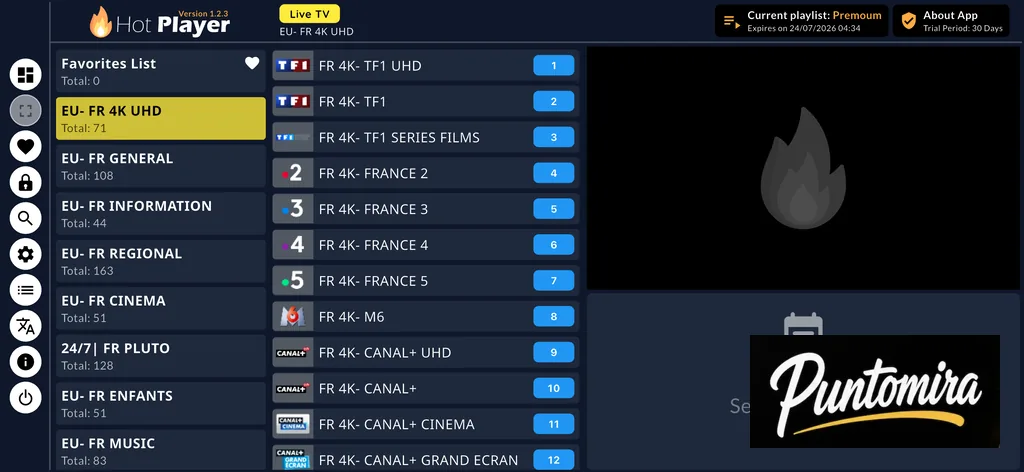
Once your IPTV subscription is configured, Hot Player offers several options to improve your daily experience. With a few adjustments, you can customize the interface, organize your favorite channels, modify the behavior of the video player, and optimize the application’s performance. These features make navigation faster and more pleasant, especially if your subscription contains several thousand channels and a vast catalog of movies and series.
Most settings are accessible from the Settings menu. Depending on the version of Hot Player used, some options may vary slightly, but the main functions remain the same.

Create a favorites list
If you regularly watch the same channels, creating a favorites list will save you precious time. This function allows you to quickly access your content without browsing through all the categories each time.
- Open a TV channel.
- Tap on the Favorite ⭐ icon.
- The channel is automatically added to your list.
- Find all your favorites from the main menu.
You can also remove a channel from your favorites at any time by repeating the same operation.
Modify video player settings
Hot Player integrates a powerful player that can be customized according to your preferences. These adjustments allow you to improve playback smoothness and viewing comfort.
| Setting | Recommendation |
|---|---|
| Video player | Use the default integrated player. |
| Buffer size | Leave on Automatic. |
| Subtitles | Activate only if necessary. |
| Auto-play | Enabled for fast channel switching. |
| Video quality | Keep the original quality. |
Customize the interface
The application also allows you to adapt its appearance to facilitate navigation. You can modify certain display elements according to your personal preferences.
- Choose the available theme.
- Show or hide certain categories.
- Sort favorite channels as a priority.
- Use the integrated search to quickly find content.
- Modify the display of lists according to your habits.
Tip: after each major modification of your IPTV subscription, launch a playlist refresh to retrieve new channels, recently added movies, as well as any EPG corrections.
Optimize Hot Player IPTV performance
A good configuration is not always enough to guarantee perfectly smooth playback. The performance of Hot Player also depends on your Internet connection, your device, and the quality of the IPTV servers used. However, a few good practices make it possible to limit buffering and significantly improve your streaming experience.
- Use a stable Internet connection, preferably via Ethernet.
- Close unnecessary applications running in the background.
- Regularly update Hot Player.
- Restart your device after major updates.
- Clear the application cache when it becomes less responsive.
- Avoid slow VPNs that can increase latency.
In the next section, we will see how to resolve the most frequent issues encountered with Hot Player IPTV: buffering, black screen, connection errors, playlist that does not load, missing EPG, or channel playback problems.
Want to test before buying? try a 24-hour free trial.
Frequently asked questions
How much does Hot Player cost?+
Hot Player is free to install; you need an active Punto Mira subscription to receive channels.
Which devices does Hot Player work on?+
LG Smart TV (webOS), Samsung (Tizen), Android TV, Fire TV Stick, IPTV boxes, desktop and smartphone.
Can I use Hot Player on multiple screens?+
Yes. The number of simultaneous screens depends on the Punto Mira plan (1, 2, 3, 4 or 5 screens).
What if Hot Player will not launch?+
Check the internet connection, restart the device, clear the Hot Player cache, then relaunch. If it persists, contact Punto Mira support.
Community
Comments and replies
Read real feedback, answer with context and leave a clearer opinion for the next visitor.