
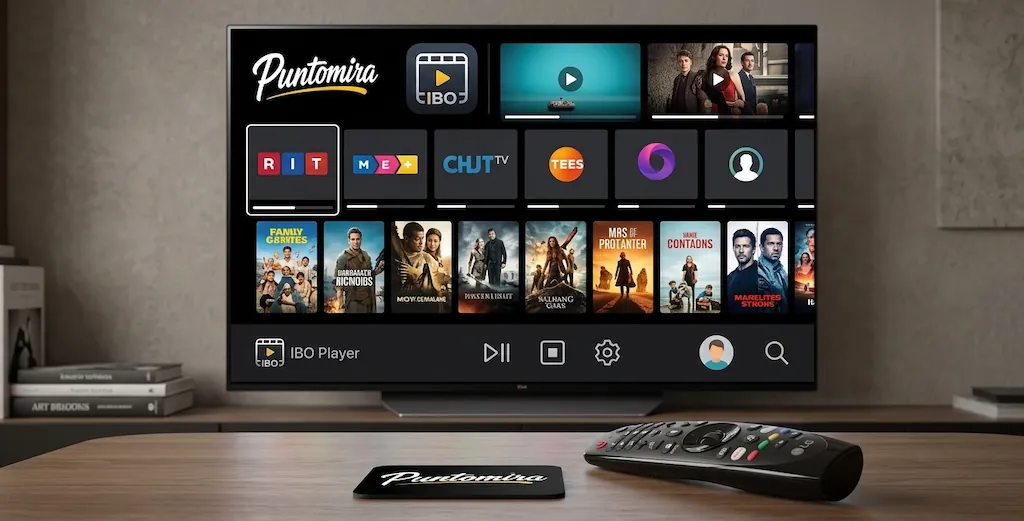
Introduction to IBO Player on LG webOS
IBO Player is a multimedia player designed to play M3U and M3U8 HLS playlists. It does not provide TV channels or content itself, but allows you to add your own IPTV sources through a simple and clean interface. The application is particularly popular on LG TVs running webOS thanks to its stability and ease of use. In this guide, we’ll show you step by step how to install and configure IBO Player on your LG Smart TV.
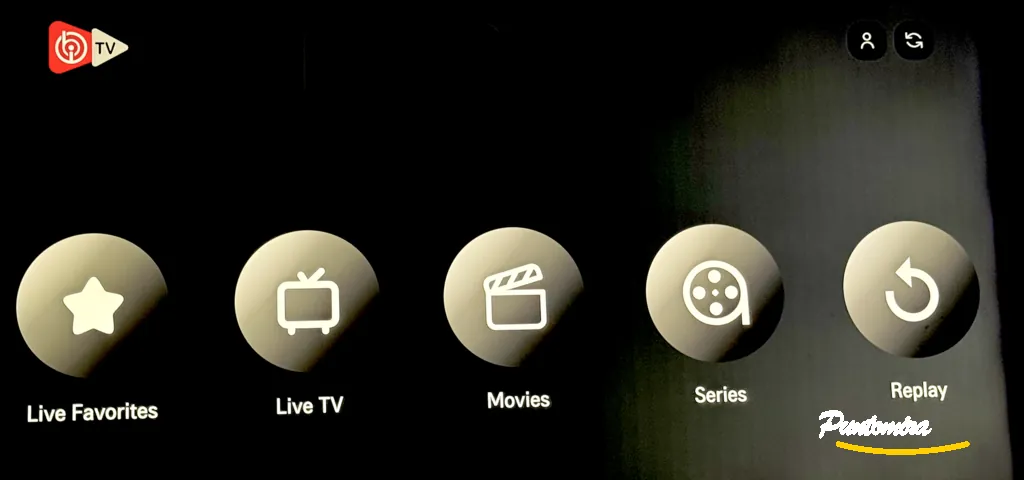
System Requirements and Compatibility
Before starting the installation, it is important to check whether your television is compatible. According to the information used in this guide, IBO Player supports the following LG TV generations:
- 2025 LG TV models (webOS 25)
- 2024 LG TV models (webOS 24)
- 2023 LG TV models (webOS 23)
For older models, webOS 4.0 or later is generally required. A stable Internet connection is also recommended for smooth streaming. When possible, using an Ethernet connection can provide greater stability than Wi-Fi.
Step 1: Install IBO Player from the LG Content Store
Installing IBO Player on an LG Smart TV is straightforward because the application is available through the TV’s application store. Follow these steps to get started:
Step-by-Step Installation Instructions
- Press the Home button on your LG remote control.
- Open the LG Content Store from the home menu.
- Select the Search icon (magnifying glass).
- Enter “IBO Player” and confirm the search.
- Select the application from the search results and click Install.
- Once the installation is complete, click Launch to open the application.
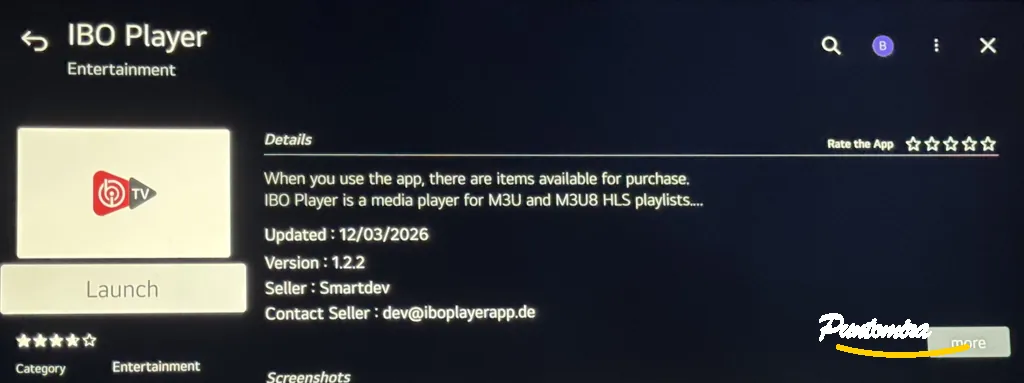
If you cannot find the application, make sure your TV is connected to the Internet and that its firmware is up to date. You can also search for IBO Player Pro, which provides a similar setup process.
Step 2: Find Your Device Credentials
When you launch IBO Player for the first time, the application displays two important pieces of information. Make sure you write them down carefully, as you will need them when managing your playlists:
- Device ID (or MAC Address): a unique identifier associated with your television (example: 68:5d:f2:4d:f0:da).
- Device Key: a unique numerical key associated with your device (example: 563287).
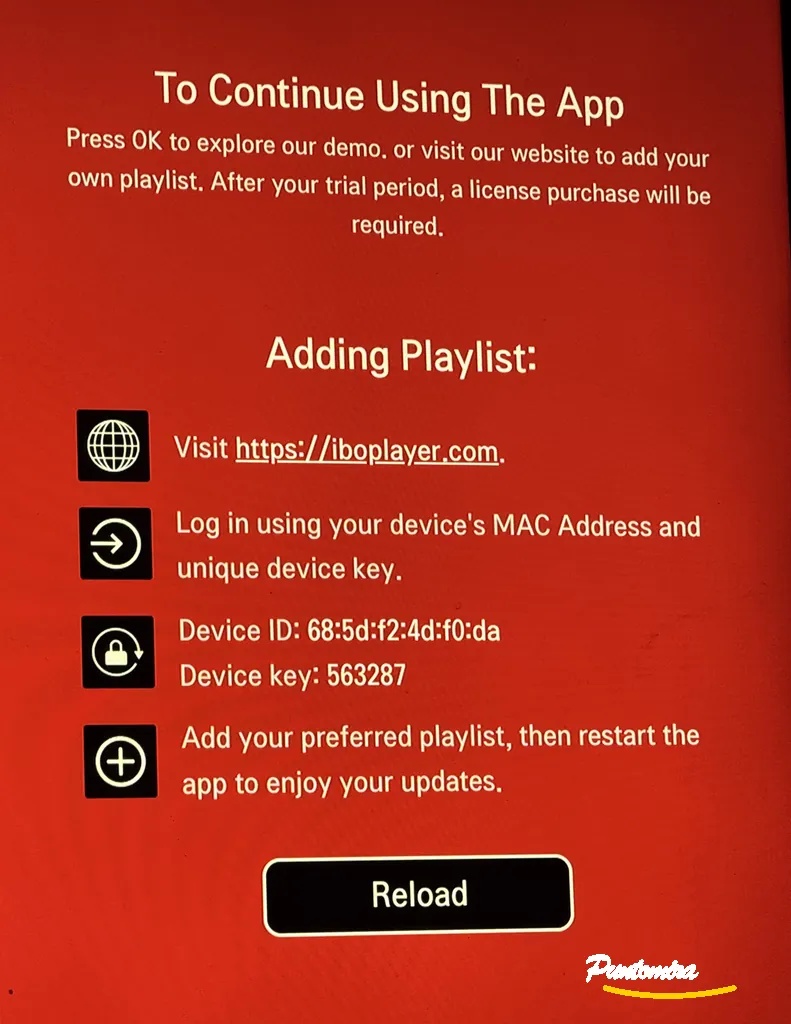
These credentials are required to link your device and add playlists through the IBO Player web portal. Keep both values available before continuing with the next step.
Step 3: Add Your IPTV Playlist
An IPTV playlist can be added through the IBO Player web portal rather than directly from the application on your LG TV. This approach makes it easier to manage playlists and update your configuration from a computer or smartphone.
Log In to the Management Portal
- On your computer or smartphone, go to https://iboplayer.com.
- Log in using the Device ID and Device Key you noted earlier.
- Once logged in, you can access the playlist management dashboard.
Add a Playlist Using an M3U Link
- From the dashboard, click “Add Playlist”.
- Paste the M3U URL provided by your IPTV provider.
- Enter a name for your playlist (for example: “PUNTOMIRA PREMIUM”).
- Click Save to save the playlist.
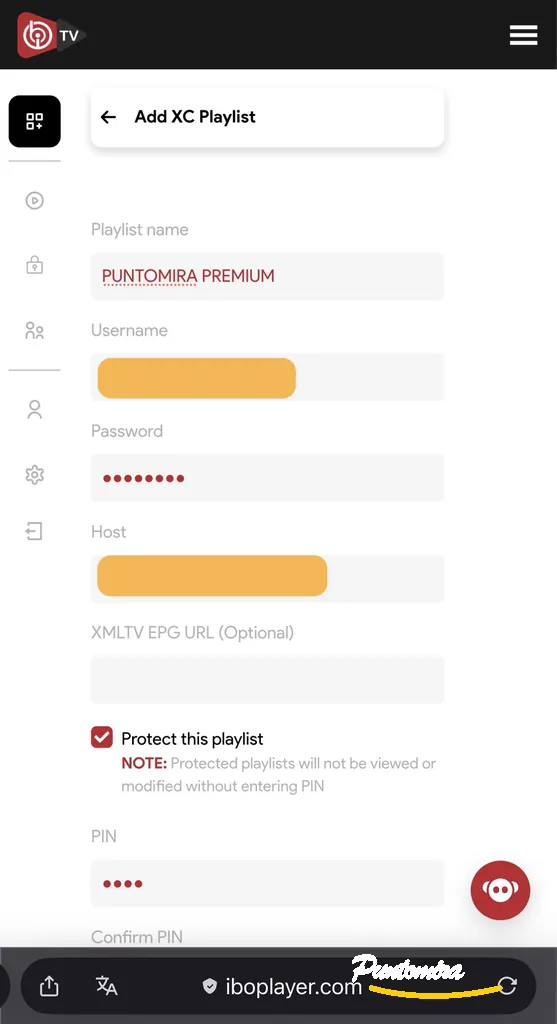
Add a Playlist Using Xtream Codes (XC Playlist)
If your IPTV provider gave you Xtream credentials consisting of a username, password and server URL, you can use the XC Playlist configuration method:
- From the management dashboard, select “Add XC Playlist”.
- Complete the following fields: Playlist name, Username, Password and Host (server URL).
- You can also enter an EPG URL (Electronic Program Guide) if your provider supplies one.
- Click Save to save your configuration.
The Xtream method can be particularly convenient because the account information, available categories and EPG data can be managed through a structured connection rather than a standalone playlist URL.
Complete the Setup and Load Your Channels
- Return to your LG television.
- In the IBO Player application, press Reload to refresh the playlist.
- Restart the application if necessary so that the latest changes are loaded.
Your channels and VOD content should now appear inside IBO Player, organised into the categories supplied by your IPTV service.
Frequently asked questions
Is IBO Player free?
The app offers a free 7-day trial. After that period, a license is required — around €8 for a lifetime license.
Does IBO Player include TV channels?
No. IBO Player is only a media player and provides no content. You need to add your own M3U playlist or Xtream credentials from an IPTV provider.
Can I use IBO Player on multiple TVs?
A license is generally tied to a single device via its Device ID. To use the app on several TVs, you typically need one license per device.
What if my Device ID changes?
Each TV can use different MAC addresses for Wi-Fi and Ethernet. If you switch connection type, the MAC address used by the app may change. In that case you may need to re-check the setup or reactivate your license.
Can I edit my playlist after adding it?
Yes. Log back into the management portal, remove the old playlist and add a new one. Changes apply after restarting the app.
Which LG TV models are compatible with IBO Player?
IBO Player runs on most LG Smart TVs with webOS 4.0 or later — this covers most models sold since 2018 (UK, UM, NANO, UP, C, G, QNED series). Older TVs running NetCast are not supported.
What LG webOS version is required?
Minimum recommended is webOS 4.0. To check your version, go to Settings > General > About This TV. A newer version (webOS 5.0+) gives better playback performance.
Does IBO Player show an EPG (TV guide)?
Yes. IBO Player supports XMLTV-format EPG guides when your IPTV provider delivers one. Add the EPG URL in the app settings via the management portal alongside your M3U playlist or Xtream credentials.
What should I do if IBO Player doesn’t open on my LG TV?
Try these steps in order: (1) unplug the TV for 30 seconds to hard-restart, (2) check that your internet connection works, (3) update webOS firmware, (4) uninstall and reinstall IBO Player from the LG Content Store, (5) if the issue persists, verify your license status in the management portal.
Is it legal to use IBO Player?
IBO Player itself is a fully legal media-player app — it provides no content. Legality depends entirely on the source of your M3U playlist or Xtream subscription. Only use streams you have rights to, or a legitimate subscription from an authorized provider.
Community
Comments and replies
Read real feedback, answer with context and leave a clearer opinion for the next visitor.